
In-Game GUI & HUD
Just Enough Backups includes a fully interactive client-side user interface. You don't need to leave Minecraft or remember terminal commands to manage your backups.
1. Backup Management Menu
Press B to open the Backup Browser:
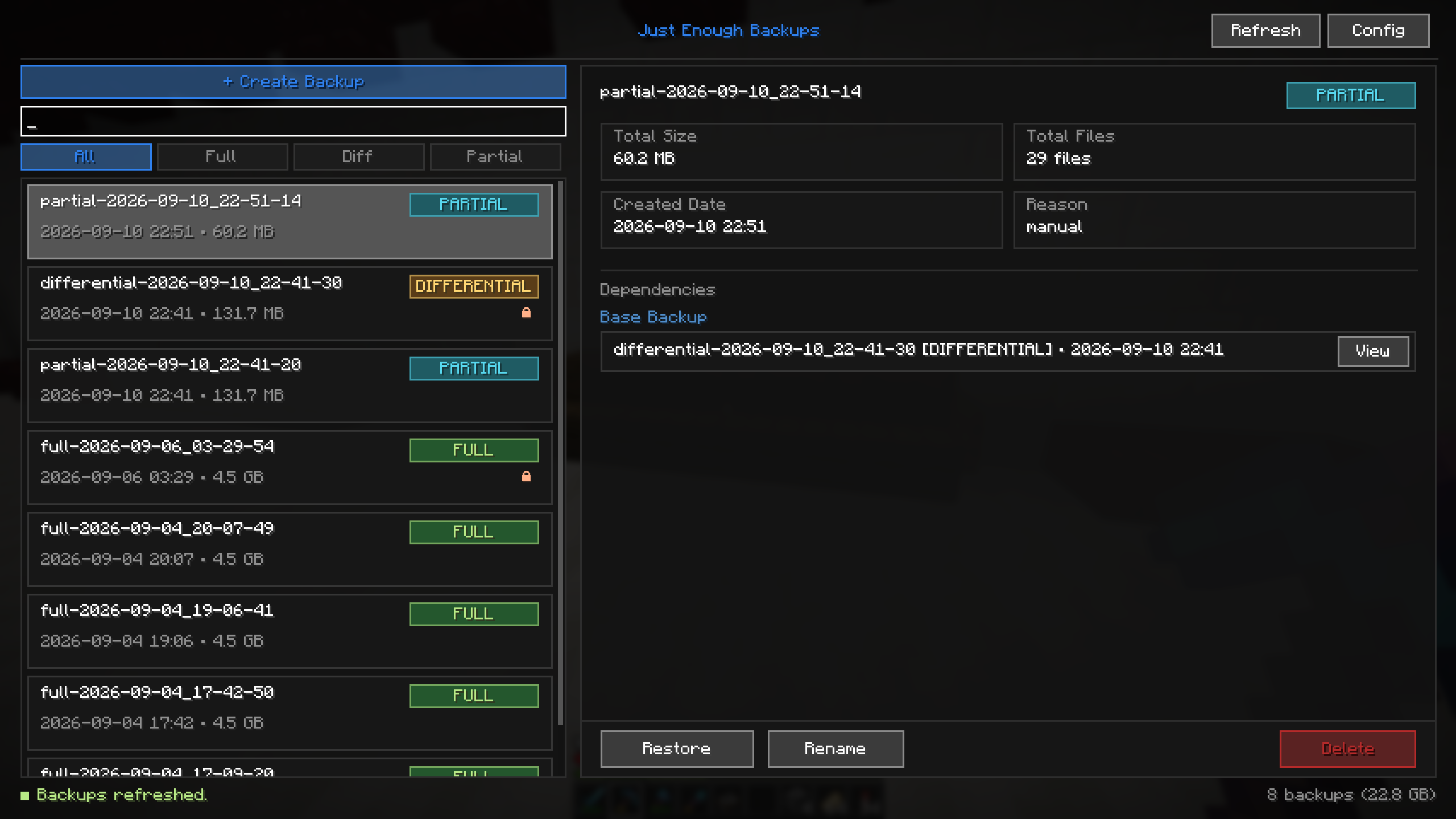
Features:
- Search & Filter: Type in the top bar to filter backups in real-time by keyword, type, or date.
- Dependency Inspection: View inline indicators showing whether an archive is a base backup or part of an incremental chain.
- Actions Toolbar:
- Create Backup: Select backup type (
FULL,PARTIAL,DIFFERENTIAL) and enter an optional custom name. - Rename: Change an existing backup's display name without breaking dependency chains.
- Delete: Remove an archive when doing so will not break a dependent backup chain.
- Restore: Launches the safe two-stage world restore process.
- Create Backup: Select backup type (
2. In-Game Configuration Screen
Press N or click the config button in Mod Menu:
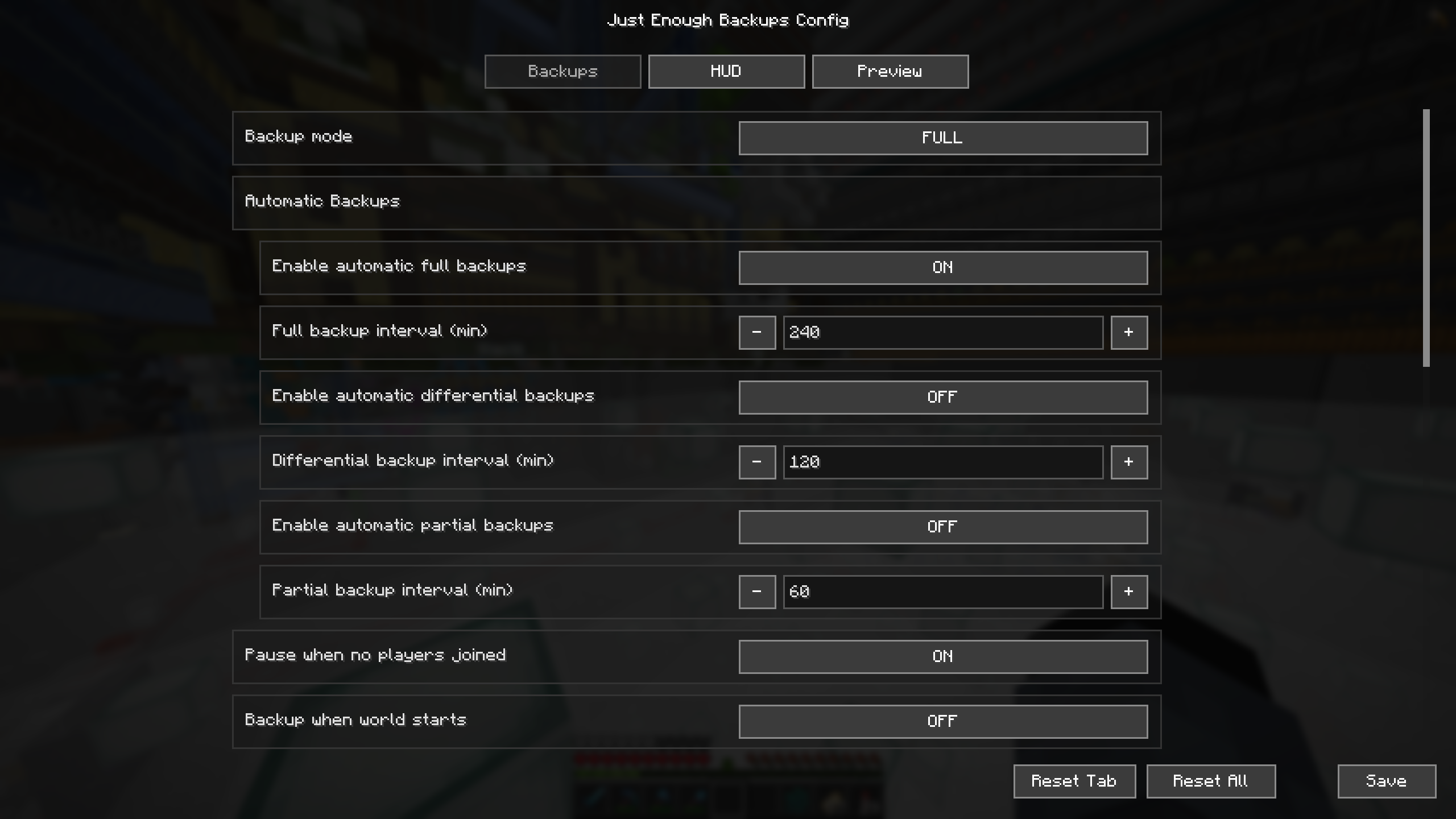
Screen Tabs:
- General: Backup mode, scheduler intervals, player presence check, server stop backups.
- Performance: Multithreading slider (
threadCount), compression method (DEFLATED/ZSTANDARD), and compression levels. - Retention: Limits for Full, Partial, and Differential archives, plus hard total world size caps.
- Remote: Cloud provider selection (S3 or WebDAV), buckets, endpoints, and credentials.
- HUD: Popup styling, position, text, colors, and display options.
- Preview: Try the popup in different states and drag it to the desired screen position.
Singleplayer vs Dedicated Server
- In Singleplayer: Changing settings in this screen immediately updates your game.
- On a Dedicated Server: HUD appearance is personal to your client. Server-wide settings (schedules, retention, storage) are saved in the server's
config/justenoughbackups.json; run/jeb config reloadafter editing that file. A client config screen does not change the server's configuration.
3. HUD Toast Notifications & Preview
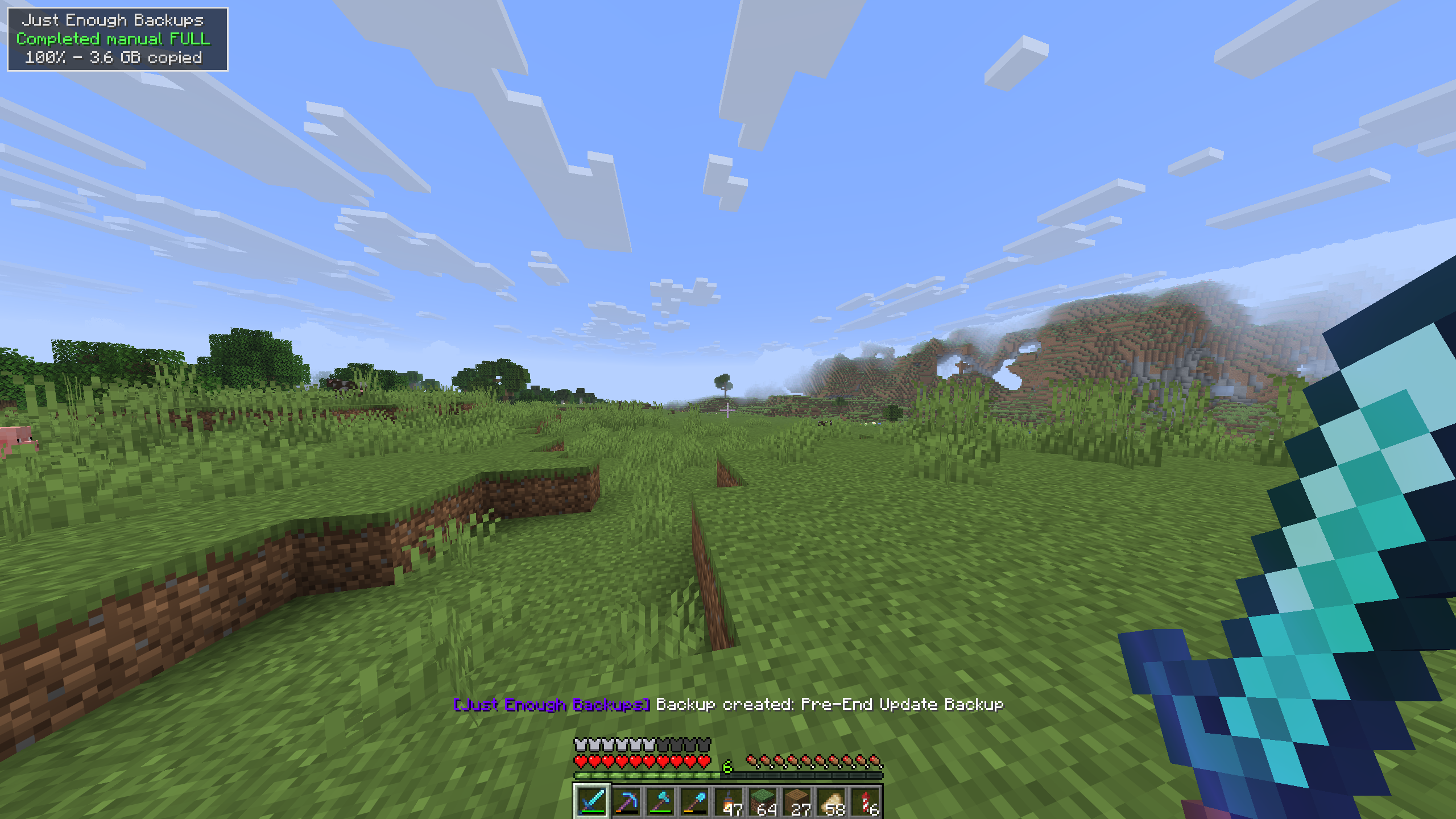
When a backup starts, scans, compresses, or completes, JEB displays an in-game toast:
Positioning the HUD:
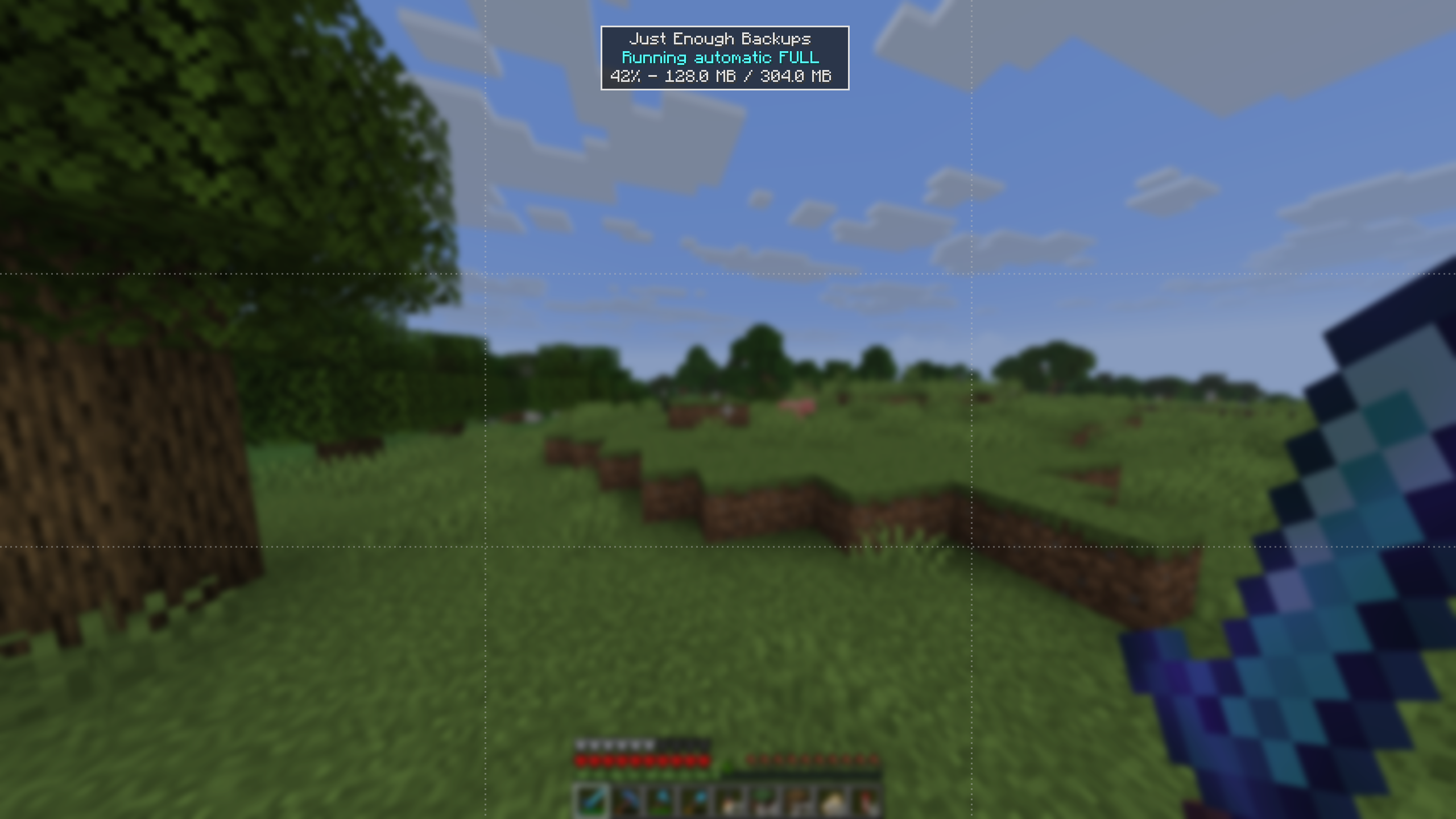
In the config menu under the Preview tab, you can drag the toast anywhere on your screen to place it wherever you prefer:
Supported Channels:
You can choose where backup events are reported:
- HUD Popup: The visual toast notification shown above.
- Chat: Standard in-game chat messages.
- Action Bar: Non-intrusive text above the hotbar.
- Disabled: Silent execution.